The Deliveries Module can be enabled for your account if you require:
-
Transcript or Caption delivery via...
- FTP or FTPS (also referred to as FTP over TLS, or FTP over SSL)
- Callback URL
- Audio Description delivery via FTP or FTPS
Prerequisites
- The Deliveries Module must be activated. See more information on how to activate this module here
- Instructions specific to Audio Description Delivery are available here.
Steps to Create a Delivery Route for Asset Delivery
The following steps demonstrate how to setup delivery via FTP or FTPS, but the process is very similar for Callback and Email deliveries.
1. Navigate to Settings

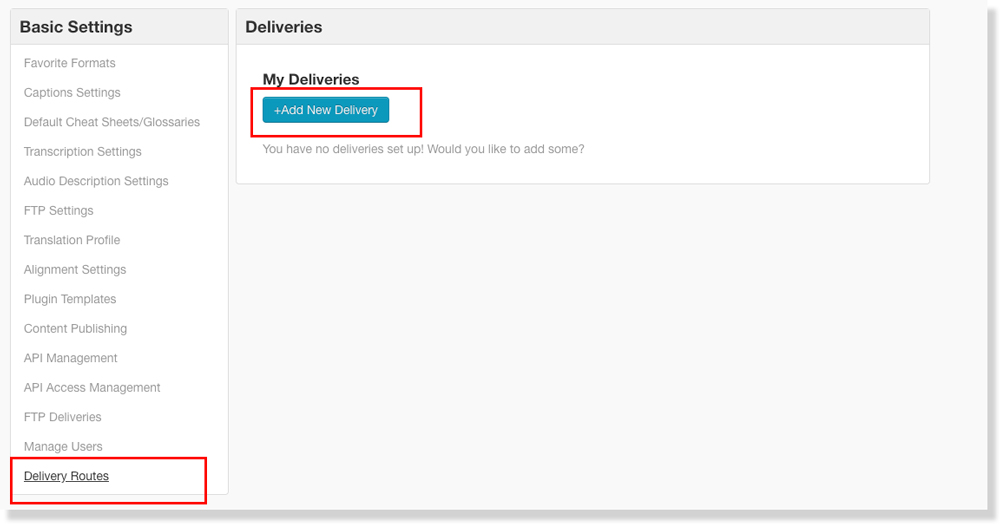
2. Navigate to Delivery Routes and Click +Add New Delivery
3. Add Name; Select Asset Type and Destination Method
- Name this Delivery Route for future reference, select the desired Asset Type, and choose a Destination Method.

4. Select Output Formats
-
Choose the output formats that you'd like delivered to this route.
5. For an FTP Delivery Route: Fill out FTP Fields and Select Batch Name
- Select FTP or FTPS as the Protocol, and add your FTP Host, Username, Password, and Path.
- If you'd like the 3Play Media folder name to match the folder name in the FTP, check Append Batch name in destination path, otherwise, leave blank.
- Click Save when done.