Translations created outside of the 3Play Media account system can be imported and associated with a 3Play Media master file as long as these closed caption files adhere to the guidelines for supported formats.
See more information regarding supported formats and guidelines for the Caption Import Service
Prerequisites
- This service is not available to Express accounts.
-
The Captions Import module must be activated.
- If the module has not been activated, log in to your 3Play Media and navigate to Settings > Add-On Modules > Captions Import and click Activate Module.
- Click here to be redirected to the Captions Import Module if already logged into the account system
Steps to Import a Translation to an Existing 3PlayMedia File
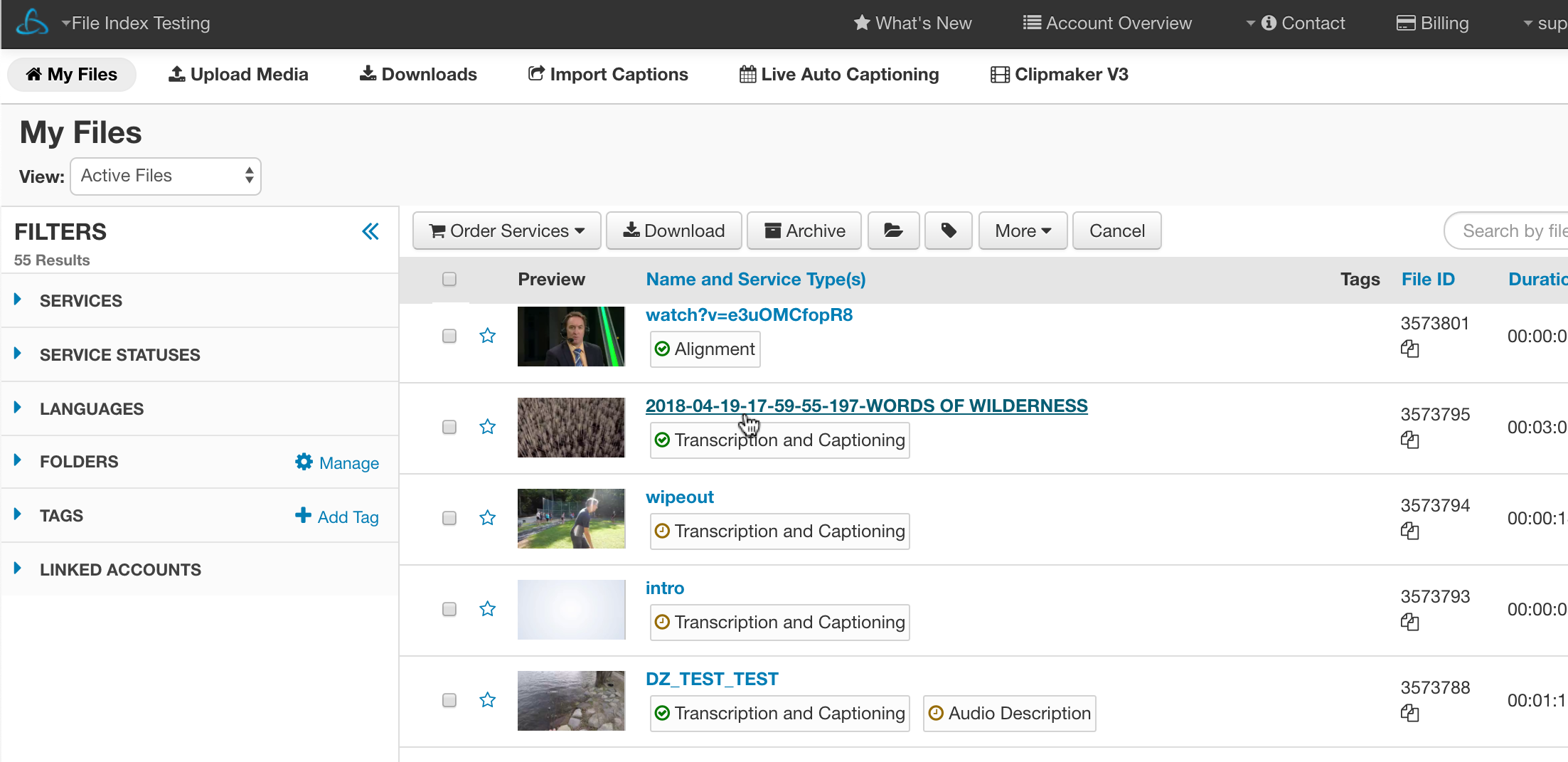
1. Select the 3Play Media master file
Locate the master file from the My Files section of your 3Play Media project.
Once located, click on the name of the file.
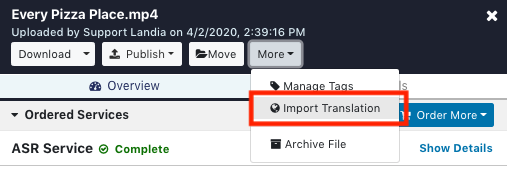
2. Click More > Import Translation
Click More located at the top of the File Panel, then click Import Translation.
3. Select Import Options
Select the language of the captions you are importing, and whether paragraph breaks should be added after each sentence.
Then select the caption file from your computer and click Import Translation.

Next steps
- The Caption Encoding service can be ordered for translations imported into the 3Play Media account system once a source video has been added to the imported file.