Prerequisites
- This service is not available to Express account types
- Before getting started please click Request Access within the Translation Module to notify 3Play Media to activate this feature
- Transcription and captioning must be completed in the language spoken in the file's original audio prior to being able to order translations on completed files. Click here to learn more about the process
- You must have a translation profile set up prior to being able to order translations
.
Follow the steps below to request translations during the ordering process in addition to transcription and captioning, and audio description orders.
- SDH subtitles & translation can also be ordered on a completed file.
Steps to Order Translation During Initial File Upload
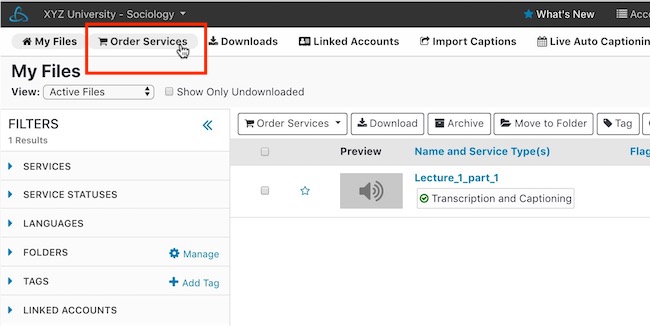
1. Click Order Services
After logging into 3Play Media, click Order Services located on the upper, left-hand side of the My Files page.
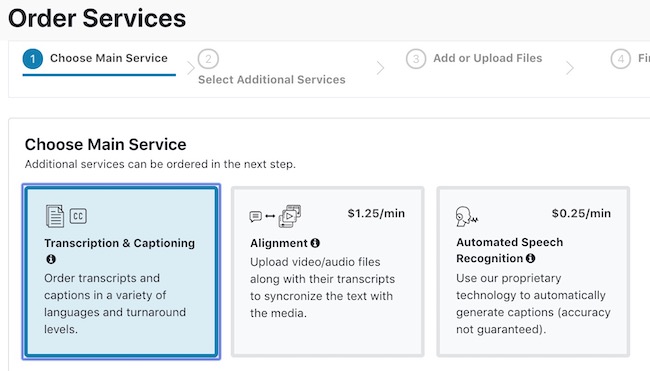
2. Select Main Service
Select a main service such as Transcription & Captioning or Transcript Alignment under Choose Main Service.
3. Click Translation
Click Subtitles & Translation located under Add Optional Services. Audio Description and Caption Placement services can also be selected as well.
| Note: Subtitles & translation services will only apply to video files within the order. A mix of video and audio-only can be uploaded together, however, only translation orders for video files will be accepted by our vendor partners. |
After selecting additional services, click Next.
4. Select Languages
From the dropdown menu select the languages that will be applied to this order. Alternatively, the search function can be used to find a specific language.
5. Select Vendor, Service Level, and Translation Profile
For each language selected in step 4 select vendor, service level, and translation profile.
If a translation vendor doesn't support a language that was selected, the option will not display.
-
Click for more information on Transperfect and their service levelsClick for more information on Gengo and their service levels
- Click for more information regarding Machine Translation
6. Review Estimated Cost
Please review the estimated cost for the options selected during Step 5. Please note that TransPerfect charges are based on the duration of the media file while Gengo and Machine Translation charge by the word count.
Note: TransPerfect has a minimum duration of 5 minutes per file for services ordered through them. Files under this minimum will be rounded up to 5 minutes. To order Rush or Expedited Turnaround for TransPerfect, make sure the Fast TransPerfect Turnaround Add-On Module is enabled in your Settings.
Step 7- Acknowledgment of Policy
Please check the box acknowledging that subtitles & translations cannot be refunded!
Once the policy has been acknowledged, click Next

Step 8- Select Folder
Create a new folder for where the media files for this order will reside or select an existing folder to store these orders.
Please note that files can be moved between folders within a 3Play Media project even before services are complete.
Click for information regarding how to move files to different folders
Step 9- Add Media Files to Order
Select the media files for the order.
Remember that each language and service level selected will apply to every media file that is uploaded.
Click Start Upload and the media files will begin uploading.

When files are done uploading, click Next to review your order.
Step 10- Review and Submit Order
Please review the services and turnaround times requested on the Finalize Order section of the form. Read the cancellation policy that displays on the right-hand side of the Finalize Order page.
After reviewing the order and cancelation policy click Submit to complete the ordering process.