This process explains how to upload media files to your 3Play Media project either by uploading files stored on your computer or by submitting direct links (URLs) to media hosted elsewhere. These methods allow you to quickly submit your media for transcription, captioning, or other services offered by 3Play Media.
Prerequisites
For link uploads: Provide direct HTTP URLs ending with supported media file extensions; public or unlisted YouTube links are accepted, but private videos cannot be processed. Example links that can be processed include [http://mywebsite/myvideo.mp4, http://mywebpage/interview.aiff]
For computer uploads: Prepare the media files on your device in supported formats (e.g., MP4, MOV, WAV) that aren’t encrypted or password protected. For work uploads, check with IT to avoid firewall or security blocks.
-
Before ordering services it is best practice to configure both Transcription and Audio Description project settings.
Steps to Order Services
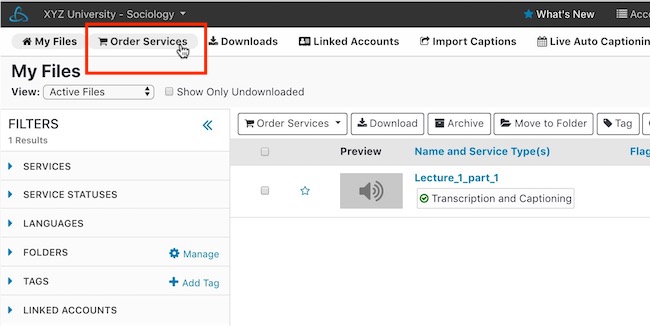
1. Click Order Services
After logging into 3Play Media, click Order Services located on the upper, left-hand side of the My Files page.
2. Select Service (s)
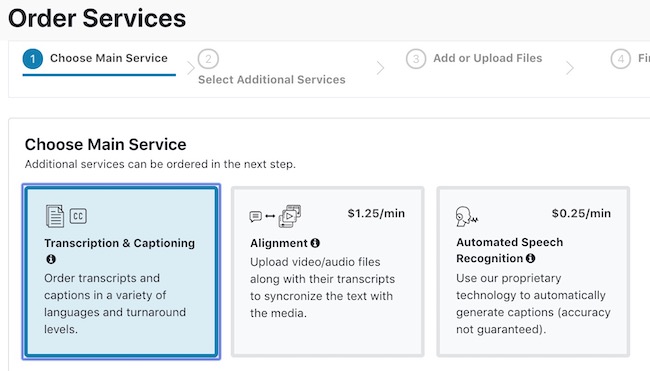
Under Choose Main Service select Transcription & Captioning or your desired main service.
3. Select Language
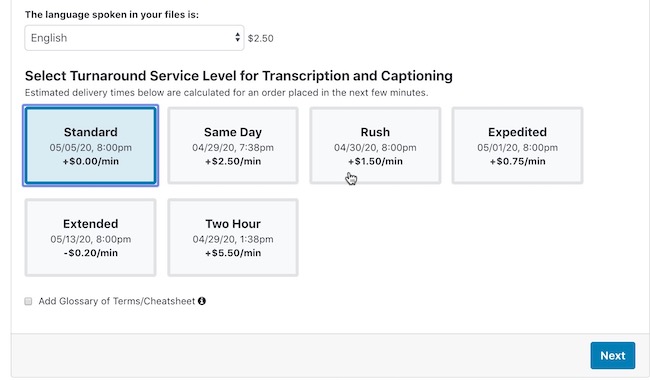
After selecting the service, select the language spoken within the media files that will be submitted for this order. Please select the language spoken (or predominately spoken) within the media files for this order.

| Note: Selecting a language solely pertains to the transcription and captioning service. This is not how a language is selected for ordering translation services. |
4. Select Turnaround Level
Next, select the desired turnaround service level.
5. Add Order Instructions ( Optional )
After selecting a turnaround service level, check the box to add order instructions (optional). Skip this step if not needed.
Use order instructions only to provide correct spellings for product names, people, technical terms, acronyms, or other uncommon/proprietary words that can’t be easily researched or inferred from the content. You may attach a PDF or enter a note (max 500 characters).
Once complete, click Next.
6. Order Additional Services ( Optional )
Next, select any additional services for this order, then click Next. Examples include:
- Caption Placement
- Audio Description
- Subtitles and Translation for eligible account types of pro or higher
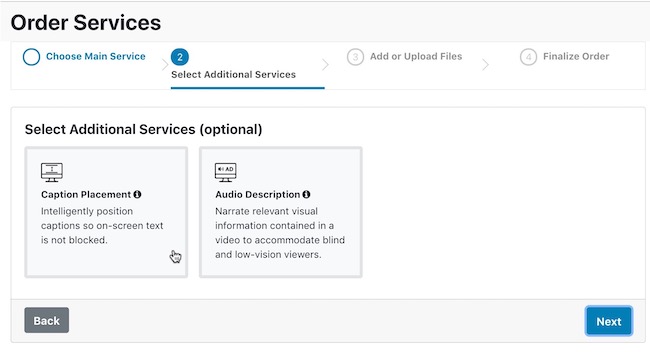
| Note: Selected services will only apply to video files within the order. A mix of video and audio-only can be uploaded together however any these additional services when ordered for audio-only files will be rejected without costs being incurred. |
7. Select Folder ( Optional )
Create or select a folder for your order; if none is chosen, files go to “My Latest Upload.” You can move files between folders anytime, even before services are complete.
8. Choose Your Upload Method
Select either:
- Upload from Computer to select files stored on your device.
- Upload via Link to submit direct URLs to your media files.
8a. If uploading from your computer:
- Click Select from Computer or drag and drop files into the upload area.
- Select the media files you want to upload.
- Click Start Upload to start submitting the files.
8b. If uploading via links:
- Paste the direct URL(s) to your media file(s) into the provided field.
- Click Add Files to send the files for processing.

9. Review Policies and Submit Your Order
Review services, turnaround times, and the cancellation policy on the Finalize Order page, then click Submit to place your order.
