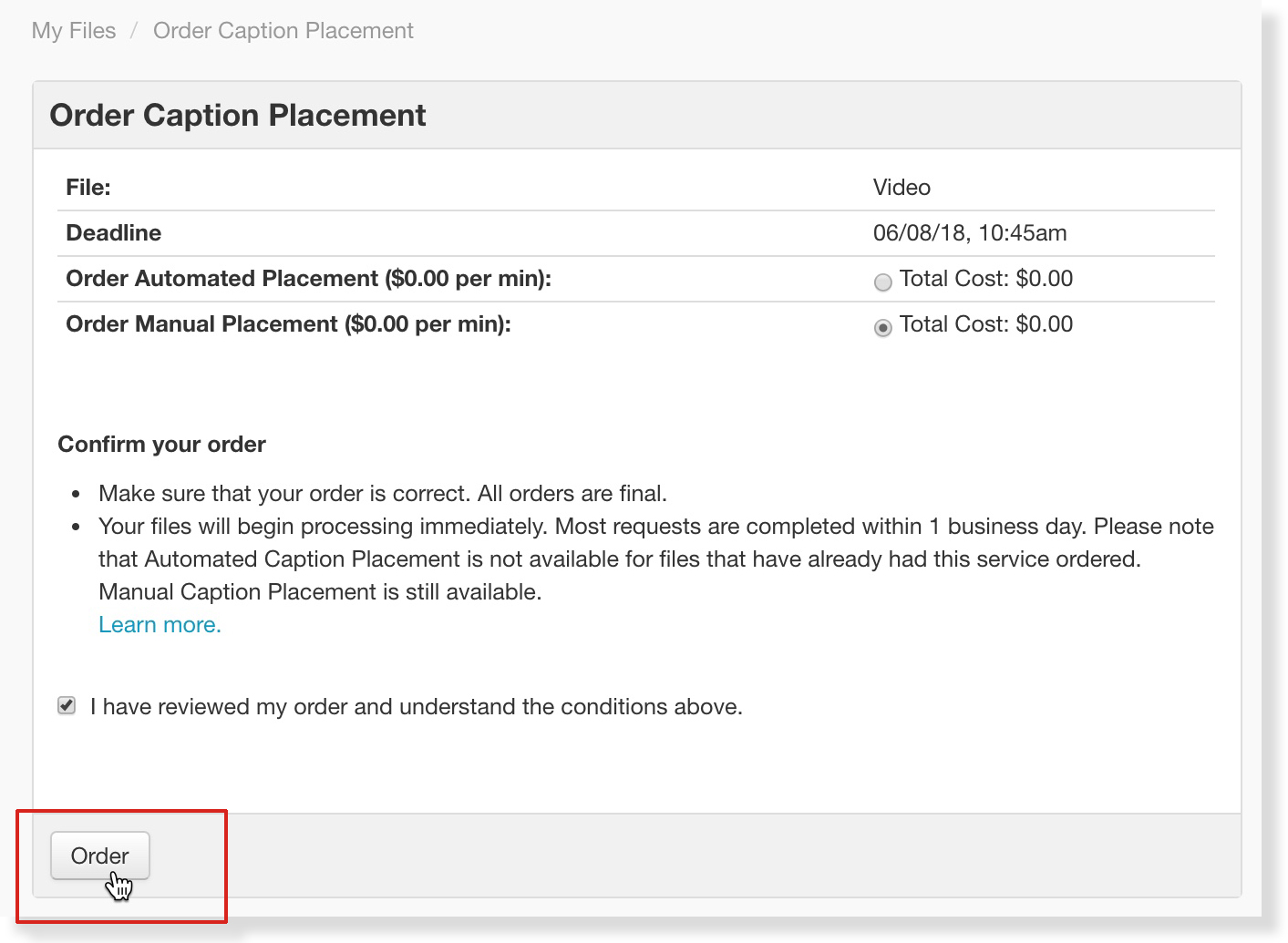
Vertical Caption Placement (VCP) can be ordered either as part of the upload process or after a file has been completed. Follow the steps below to order Vertical Caption Placement for a completed 3Play Media file that was created using the English transcription and captioning service, the English transcript alignment service, or the Captions Import Service.
- If the file was created by using the Captions Import Service, that the ability to order VCP for the imported file will only be possible once a source video has been added.
| Note: If you only want your captions on the bottom third of the viewing area, and do not want captions moved to the top third at any point, you do not need to order caption placement. All captions will be at the bottom third of the viewing area without caption placement, by default. |
Steps to Order VCP for a Completed File
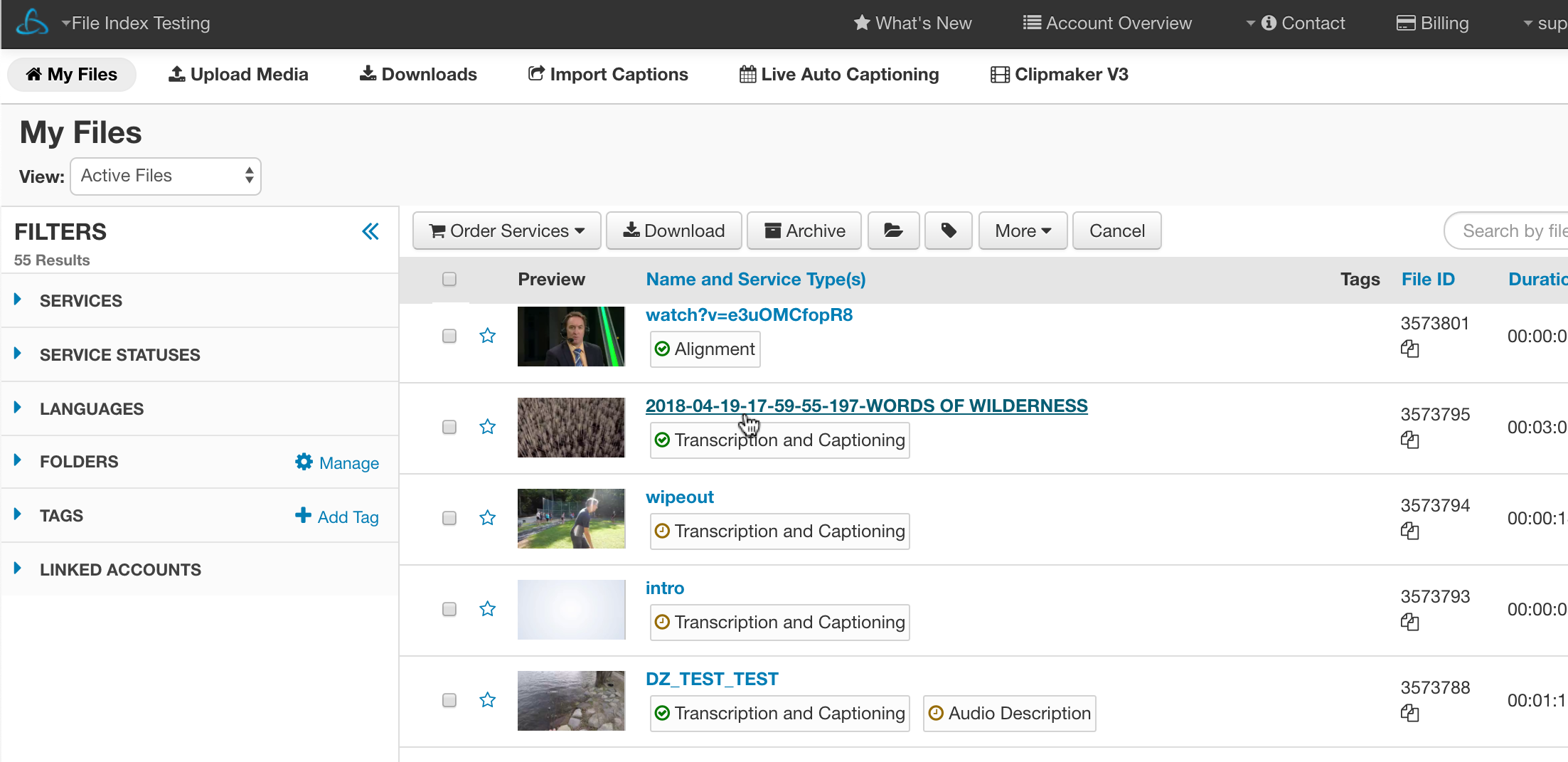
1. Select the File
Select the file for which you would like to order Vertical Caption Placement from the My Files page and click into the file.
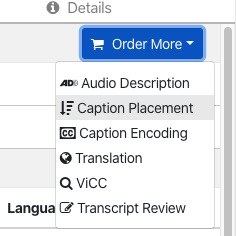
2. Click Order More
Click the Order More button located above the transcript preview window.

3. Select Caption Placement
From the Order More drop-down menu select Caption Placement.
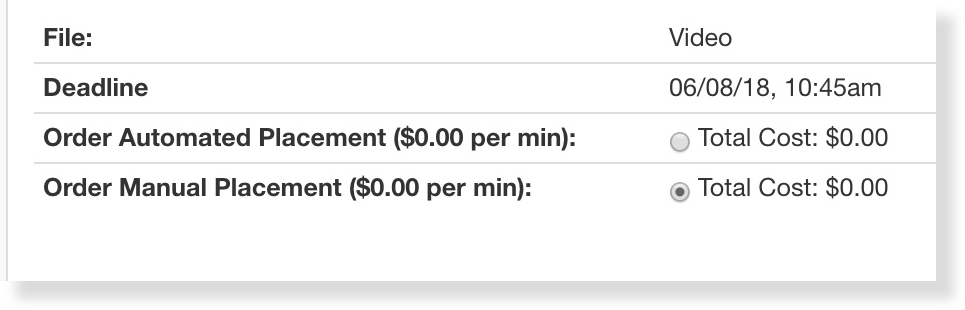
4. Select Automatic or Manual Caption Placement
On the Order Caption Placement menu select either Automatic or Manual Caption Placement.
For more information regarding Automatic vs Manual Caption Placement click here
5. Review Order
Note the Deadline, cost and service type.
Once the order has been reviewed, check the box at the bottom of the menu to confirm that the order has been reviewed and that the conditions from this page are understood.
6. Submit Order
Click Order to submit the request for Vertical Caption Placement.