Learn how to order and download videos with encoded captions in your 3Play Media account.
Prerequisites
Before placing an encoding order:
-
Transcription or Alignment Completion: Ensure that transcription or alignment services are complete.
-
60-Day Window: You have 60 days from the completion of transcription or alignment to place an encoding order.
-
Proofreading: Review and edit your transcript as needed before ordering encoded captions.
Ordering a Video with Encoded Captions
1. Log into Your 3Play Account
- Access your account at 3Play Media.

2. Select Files
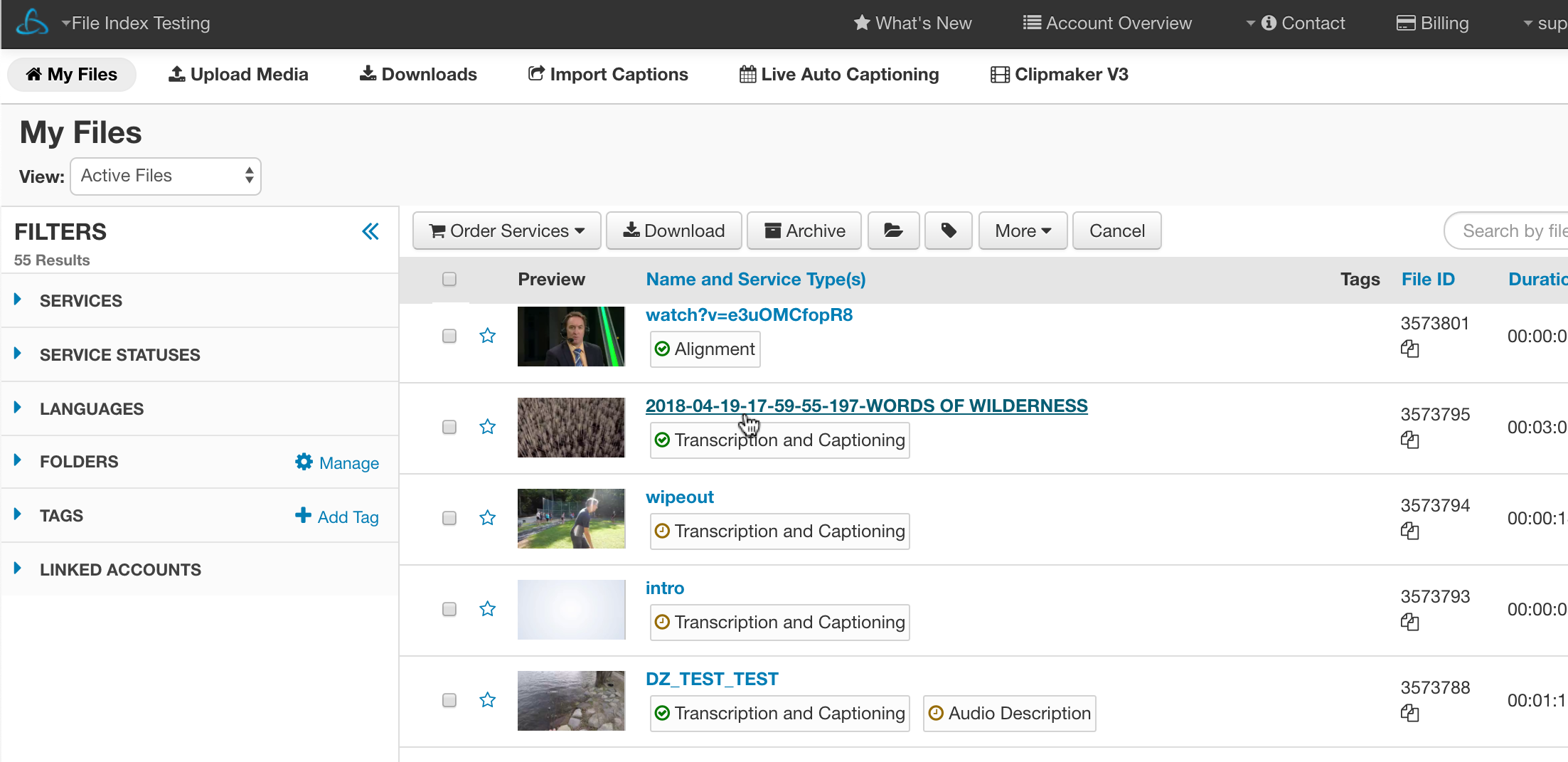
- Navigate to the 'My Files' page and check the box next to the file(s) you want to order.

3. Order Caption Encoding
- Click the 'Order Services' button above the file list and select 'Caption Encoding'.

4. Choose Encoding Profile
- In the pop-up menu, select the desired encoding profile(s). Note that selecting multiple profiles will incur additional charges.
5. Include Translations (Optional)
- If your transcript has translations, select the languages to include in the encoded video.

6. Review and Submit
- Confirm your selections and click 'Order'.

Downloading a Video with Encoded Captions
1. Filter by Caption Encodings
- On the 'My Files' page, use the filter options to display files with caption encodings.

2. Select a File
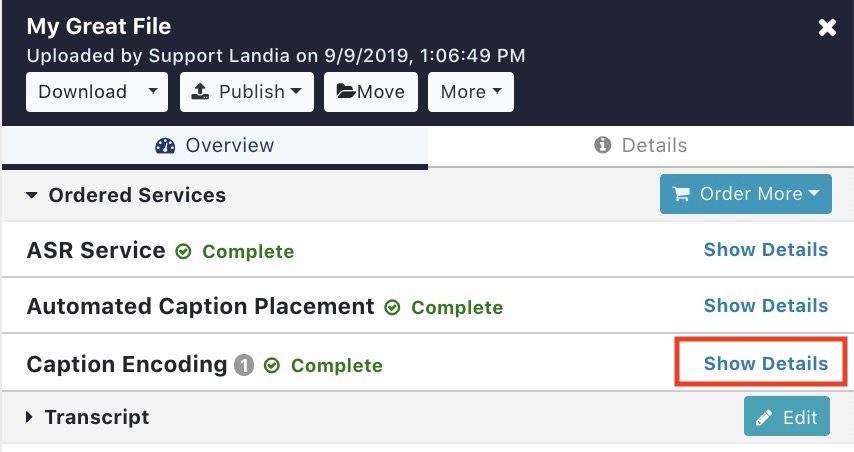
- Click on the file you wish to download.
3. Access Caption Encoding Details
- Under 'Ordered Services', click 'Show Details' for the Caption Encoding service.
4. Download the Encoded Video
- Click on the caption encoding name to initiate the download.
